Channel Orchestration
Timing upgrade messages around product usage
Choose a trial upgrade-message moment from verified product use, then recheck the need, plan and permission before sending.
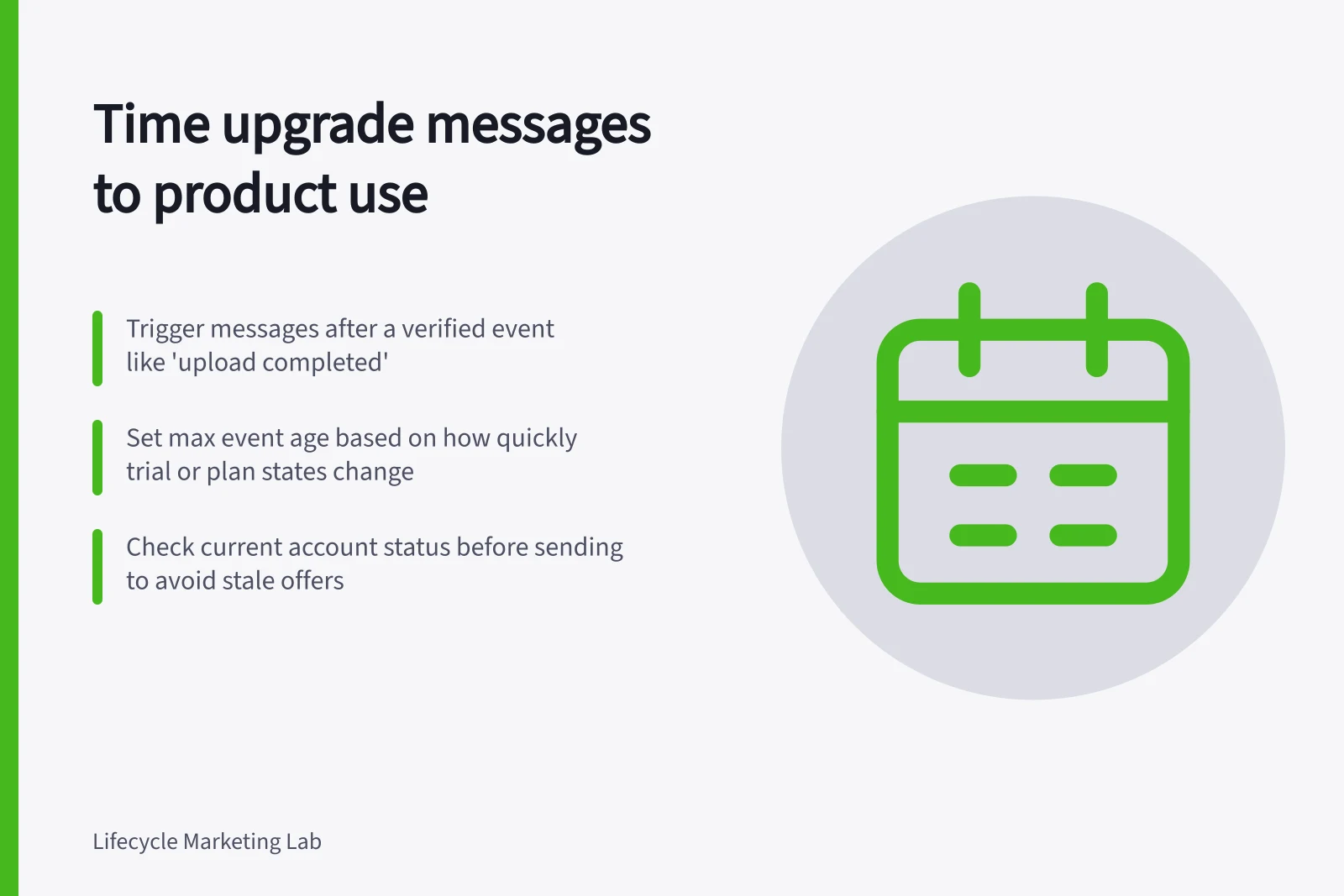
Time a trial upgrade message for a verified use event that makes a paid option relevant to the customer’s current task. A trial deadline can explain when an arrangement changes, but it does not show readiness on its own.
Recheck the use event, constraint and account plan when the message is due.
Match the message to the moment
Consider a hypothetical design tool:
| Observation | Possible response | What it does not prove |
|---|---|---|
| First successful export | Explain a useful next step | That the customer needs a paid plan. |
| Repeated attempt at a paid capability | Explain the capability and current terms | That this user can authorise purchase. |
| Verified trial end approaching | Explain the date and next account state | That the customer has experienced value. |
A limit event is useful only if it records a genuine plan constraint rather than a misleading click or product error.
A concrete event to track is upload completed; Intercom’s example uses it to prompt the user to share the upload. Intercom events can be tracked with its JavaScript API, Google Tag Manager, REST API, or apps and integrations.
In Intercom, an outbound message using an event trigger must be dynamic rather than fixed, and it can have only one event-based rule. If you are unsure how to track an event, involve a developer or engineer.
In a team account, the user meeting the limit may differ from the buyer. Decide whether help belongs beside the task, with the account owner, or both.
Give the trigger a useful lifetime
An explanation in the product can meet a customer at the constrained task. A follow-up may help when a decision needs another person or information to revisit. Choose a delay based on what could change before it ends: the limit, fault, plan or trial state.
Set a maximum event age before launch, based on how quickly the limit, fault, plan or trial state can change. Keep the wording valid only until that age is reached or a current-state check shows the use is no longer relevant, whichever comes first.
At dispatch, compare the event’s occurrence time with the delivery time and recheck the current account. If the event is too old or the relevant need has ended, suppress the message rather than implying the customer is still on that screen or plan.
Intercom’s example uses a frequency limit of once per hour rather than once per minute to reduce over-messaging. Treat this as a frequency cap, not a recommended delay after the event or a message lifetime.
Intercom event-triggered outbound messages require the Proactive Support Plus add-on, which can be added to any Intercom plan. Events recorded before such a message goes live do not trigger it.
Confirm the chosen product’s access, frequency controls and configuration; an event trigger alone does not guarantee one appropriate send.
Pros and cons of using event-triggered messages in Intercom
- Pro: Personalised timing based on real user behaviourMessages align with actual product use, increasing relevance.
- Con: Requires Proactive Support Plus add-onOnly available on Intercom Pro plans; may limit access for smaller teams.
- Pro: Can be configured via API, GTM, or integrationsFlexible implementation across technical setups.
- Con: Events recorded before activation won’t trigger messagesHistorical data cannot be used retroactively.
Make the final send decision
Near dispatch, check the current plan, whether the constraint still applies, relevant support issues and any active sales conversation. Skip an offer after an upgrade.
If a task failed because of a product fault, provide help before another pitch. When the state is uncertain, avoid claiming the recipient hit a limit or hold the message for review.
For commercial messages, check ACMA’s Avoid sending spam guidance before sending.
Review the timing
Record eligible accounts, trigger occurrence, scheduling, delivery, skips and verified paid outcomes within a declared window. Include messages delivered after their trigger became stale.
Measure trigger-to-send latency from event occurrence to delivery, and report stale deliveries separately. Declare the outcome window before comparing timings, then apply it consistently to each timing group.
A later upgrade is an observed outcome, not proof that the timing caused it. If a fair test is feasible, compare eligible accounts assigned to different timings while keeping the offer and outcome window consistent.


