Channel Orchestration
Part of Cross-channel lifecycle orchestration
Applying contact limits across several messaging channels
Define shared contact limits across channels, check platform exclusions and time windows, and handle blocked or retried messages safely.
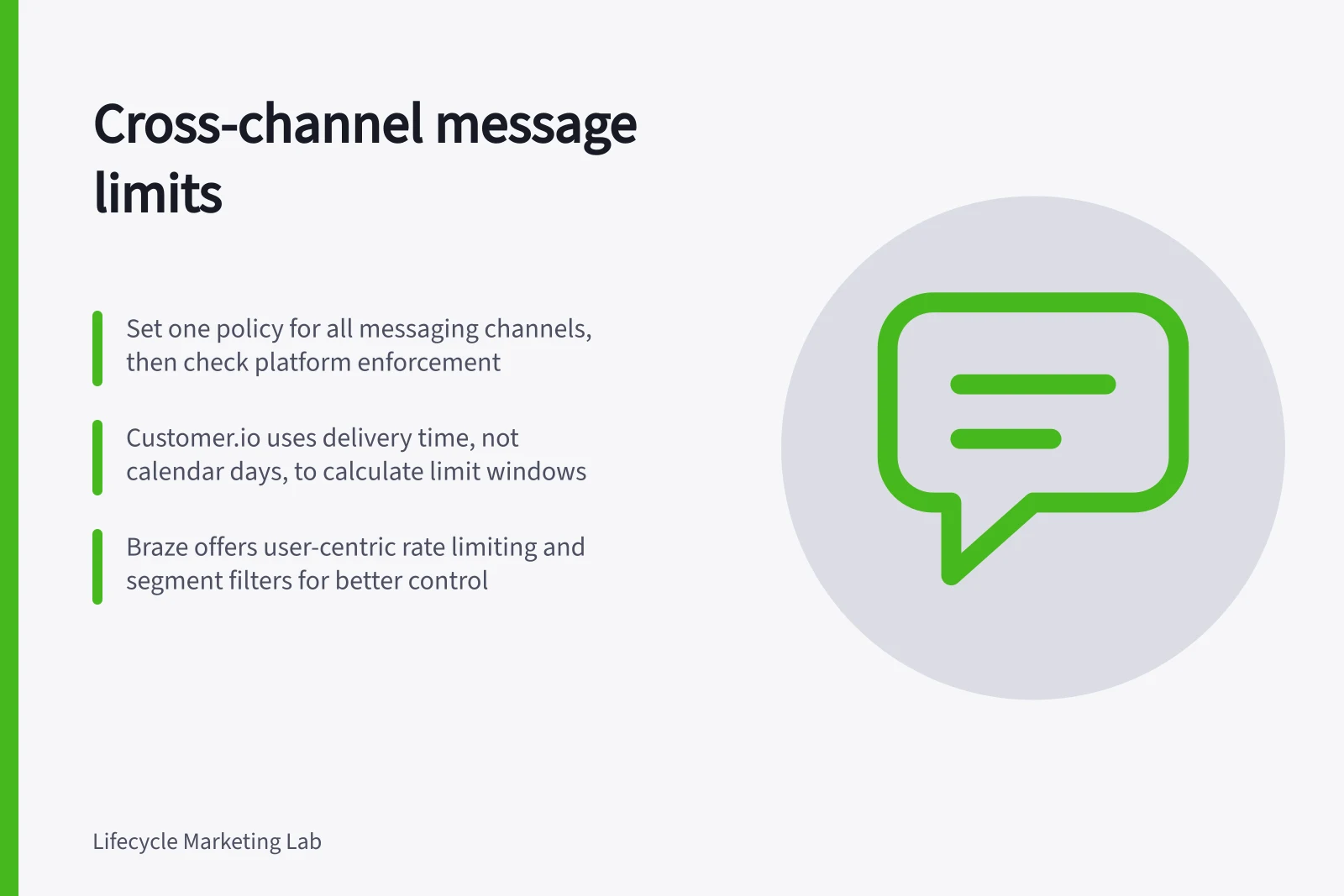
Set one contact policy for the customer's combined messaging experience, then check which parts each platform can enforce. Define whose history counts, which messages are included, the time window and what happens when a message reaches the limit. Channel caps on their own can still let several messages arrive together.
Define what the limit counts
Choose the limit from the organisation's customer experience and observed outcomes; there is no useful universal number. Write the rule before configuring it.
| Policy choice | Decision to make |
|---|---|
| Counting unit | Person, account or both; how are shared accounts handled? |
| Message scope | Which journeys, broadcasts and sending systems are included? |
| Time window | Rolling period or calendar period, and whose time zone applies? |
| Counted event | Attempt, dispatch, delivery or in-app display, according to the system's actual behaviour? |
| Exception | Which necessary account or service messages need a separate path? |
| Blocked step | Skip, hold for review or retry while still relevant? |
A contact limit does not establish permission. Treat consent and any applicable regulatory obligations as separate from the cap.
Check the platform's coverage
Customer.io can set limits across selected outbound channels, including email and SMS. No workflow counts towards a limit by default; it must be assigned. Its message frequency limits exclude in-app and inbox messages. Customer.io calculates limit windows relative to message delivery times, rather than calendar days.
Braze documents rate limiting, user-centric rate limiting, segment filters such as Last Engaged With Message and Last Received Any Message, and a maximum user cap. These controls operate alongside, rather than instead of, a cross-channel contact policy.
Neither product's settings are a complete record of everything a customer may see. List active senders and compare them with the configured cap. For excluded in-app messages, use relevant display and expiry controls. Review one-time campaigns and manually scheduled outreach as well as automations.
Decide what a blocked message does next
In Customer.io, a capped message is recorded as undeliverable unless a retry window is enabled. Do not assume an automatic retry receives a fresh task-state check. Disable or avoid automatic retry for a step that could become stale, or inspect how the configured system prevents the wrong later send.
When a platform skips a message because of a cap or filter, a later step should not assume the skipped instruction was received.
A cap limits volume; it does not decide which eligible message is more useful or whether two messages contradict each other. Do not exempt every triggered promotion. Review any service or transactional exception by its actual content and purpose, rather than relying on the platform label.
Review volume and missed help
Before release, inspect example histories with email followed by SMS, an in-app display, simultaneous journeys and an opt-out between send attempts. Check the expected count, blocked-step behaviour and any retry.
After launch, review sends, capped attempts, retries and displays alongside complaints, opt-outs and useful steps missed. A lower send count alone does not establish that the policy serves customers well.